Your Robot
Power it with a standard Bitaxe power supply or standard USB power.
Owner instructions ROBOT v2.12.0
A friendly guide to connecting your Bitaxe Robot Bitcoin Display, choosing what it shows, and keeping it working smoothly.
Before you start
Setup takes place on a temporary WiFi network created by the Robot. Your phone will briefly leave its usual internet connection.
Power it with a standard Bitaxe power supply or standard USB power.
A phone is easiest. A WiFi-capable tablet or computer with a web browser works too.
Have the network name and password ready. The Robot connects to 2.4 GHz WiFi; a dual-band network is fine if it includes 2.4 GHz. Copy the password first if you use a cloud password manager.
Use the card supplied with your Robot for its BitaxeRobot WiFi password.
Quick start
WiFi setup is required the first time—and whenever the saved network is unavailable. RobotSettings is optional. Both stages use the WiFi name BitaxeRobot, but they do different jobs, and a short disconnect between them is normal.
This first page normally opens for you.
Saved WiFi unavailable? Follow these same steps if the Robot cannot connect to its previously saved WiFi network. At startup, it briefly tries the saved network before entering setup. No reset is needed.
At startup, confirm that the device screen shows ROBOT v2.12.0.
Open WiFi settings on your phone. Choose BitaxeRobot and enter the BitaxeRobot WiFi password from your private card. If asked, choose to stay connected or use the network without internet.
The setup page should open automatically. If it does not appear after a short wait, open a browser and enter:
192.168.4.1For better protection, use a properly isolated guest or IoT network if one is available. It should have internet access but no access to your trusted computers, phones, or storage. Do not choose a guest network that requires a browser sign-in page; the Robot cannot complete that sign-in.
Select your network, enter its password, and tap Connect to WiFi. Decline any offer to save your local WiFi password as a website password for 192.168.4.1.
When WIFI SAVED appears, required setup is finished. RobotSettings starts next, but you do not have to open it.
Open this second page only if you want to customize or manage the Robot, run diagnostics, or close the temporary settings network early.
After WIFI SAVED, the Robot switches from WiFi setup to RobotSettings. Your phone may rejoin automatically; otherwise choose BitaxeRobot again using the same BitaxeRobot WiFi password from your private card. If no phone or computer joins, the normal display rotation starts automatically after about one minute.
In your browser’s address bar, enter 192.168.4.1, then enter the changing four-digit PIN shown on the device screen.
For ordinary customization, use Display, Price, and Device. Feed Test is an optional advanced diagnostic. Save changes on each page before leaving it.
Give it a moment. These pages come directly from the Robot and may occasionally respond slowly. Wait for the page instead of tapping repeatedly.
Save changes on the current page first. Finish Settings… only takes you to Device; it does not save unsaved changes on the page you leave. On Device, use Finish & Close RobotSettings to close the temporary BitaxeRobot WiFi network immediately. Your saved settings remain active.
Initial WiFi setup
Setup instructions appear for about two minutes, then the screen changes to a short logo, eyes, and message showcase. The BitaxeRobot setup network remains available so setup can still be completed later.
RobotSettings
Connection instructions appear for about one minute, then the normal display rotation begins. The unopened settings network remains available for about five minutes from when RobotSettings started, then closes automatically. If a remembered phone joins automatically and you want to skip RobotSettings, disconnect it from BitaxeRobot.
RobotSettings
RobotSettings is optional and lives on the Robot itself. It has four pages: Display, Price, Feed Test, and Device. You can reopen it during startup whenever you want to make changes.
Unplug whichever power source you are using, then plug it back in. If RobotSettings is already open, you may use Restart Device instead.
During the settings guidance, join the Robot’s WiFi using the BitaxeRobot WiFi password on your private card. Your phone may join automatically if it remembers the network.
In your browser’s address bar, enter 192.168.4.1, then enter the new PIN shown on the device screen.
Make it yours
RobotSettings has four pages: Display, Price, Feed Test, and Device. Use the navigation buttons to move between them, and save on the current page before opening another one.
Display
Add, delete, and reorder up to 24 items. Each item has its own display duration.
Price
Select Coinbase, Kraken, or CoinGecko and a compatible refresh rate. The choice applies to both USD and EUR.
Optional fallbacks let the Robot try another source if your selected source fails. A fallback price is labeled on the device screen.
Feed Test
Check USD and EUR against Coinbase, Kraken, and CoinGecko when a price source seems unreliable. Feed Test is not needed for ordinary setup or customization.
Device
Close the temporary BitaxeRobot WiFi network when you are done, restart without losing settings, or erase saved information.
Device page · Public Display Mode
The firmware calls the BitaxeRobot WiFi password the device-network password. On Device, find Public Display Mode, check Hide the device-network password on the device screen, then click or tap Save Public Display Mode.
This is a privacy display choice, not a lock. The BitaxeRobot WiFi network, its password, and the changing RobotSettings PIN remain unchanged. Keep the private password card available.
Feed Test checks USD and EUR against Coinbase, Kraken, and CoinGecko. It is useful when a price source seems unreliable, but it is not needed for normal setup.
Troubleshooting
Most setup problems come from the phone leaving BitaxeRobot or trying to use the page as though it were on the internet.
Try this first
Stay connected to BitaxeRobot, open a normal browser, and enter http://192.168.4.1 exactly. Automatic opening is expected during setup, but phones do not always show the captive setup window.
After briefly trying the saved network at startup, the Robot returns to the same initial WiFi setup used by a new or erased device. Join BitaxeRobot and repeat Stage 1 with a network that is available. No reset is required.
That is normal. Choose the option to stay connected or use the network without internet. Keep WiFi on BitaxeRobot until the current stage is complete. You do not normally need to turn off cellular data.
Use the device screen as the authority. JOINING LOCAL WIFI means wait. WIFI SAVED means required setup succeeded, even if the browser showed an error. RobotSettings begins next, but opening it is optional. WIFI FAILED means follow the recovery directions on the device screen.
Check the local network name and password, then follow the screen as the Robot returns to setup. Reconnect to BitaxeRobot when it appears and repeat Stage 1. The Robot requires 2.4 GHz WiFi; a dual-band network works if it includes 2.4 GHz. A guest network that requires a browser sign-in page will not work.
Make sure the address starts with http://, not https. Some VPN “kill switch” or local-network settings block 192.168.4.1. If so, allow LAN/local connections or briefly pause the VPN, reconnect to BitaxeRobot, and try again. Re-enable the VPN afterward and avoid unrelated browsing while it is paused.
Wait for the requested page instead of tapping repeatedly. The small device serves each settings page itself, and an internet data request can occasionally make a page change take a few moments.
Save on each settings page before leaving it. Finish Settings… takes you to Device; it does not save unsaved changes on the page you leave. Use Finish & Close RobotSettings after everything you want has been saved.
After five incorrect attempts, RobotSettings closes. Restart the Robot to create a fresh settings network and a new PIN.
A remembered phone may have joined BitaxeRobot automatically. Disconnect the phone from BitaxeRobot if you want to skip RobotSettings. Otherwise, the joined guidance can remain until the unopened settings network closes about five minutes after RobotSettings started.
Disconnect and reconnect the Robot’s power. During startup, join BitaxeRobot, open http://192.168.4.1, and enter the new PIN. Settings you already saved are not lost when the temporary network closes.
The display keeps running. Logo, eyes, and message items continue normally, while cached online values may be labeled OLD PRICE, OLD BLOCK, OLD FEE, or LAST SEEN. If the Robot loses its connection to local WiFi for about 15 seconds, WIFI LOST appears. If local WiFi remains connected but public data requests repeatedly fail, NO INTERNET appears once per rotation. The Robot retries automatically.
Power & purpose
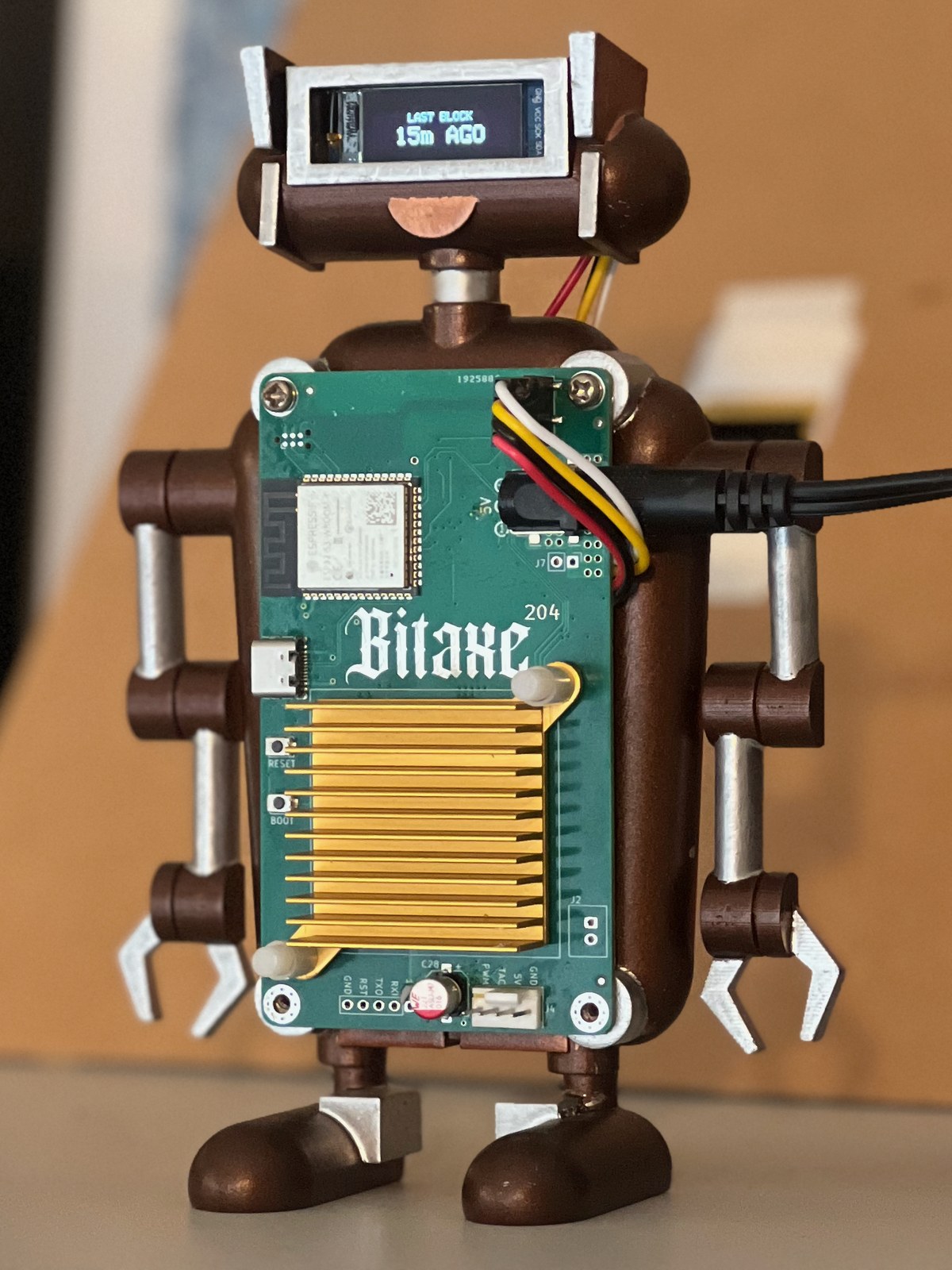
The Bitaxe Robot Bitcoin Display begins with a Bitaxe that does not function as a miner. Instead of allowing hardware that cannot serve its original purpose to become electronic waste, Rob gives its usable controller and screen a new purpose as a hand-painted art object and functional Bitcoin information display.
Security & privacy
Any device connected to a home network should be treated with basic caution. A good general practice is to put connected devices on a properly isolated guest or IoT network, away from trusted computers, phones, and network storage. This applies to the Bitaxe Robot Bitcoin Display and to other connected devices too. Good network separation reduces risk, though no connected device is completely risk-free.
A properly configured guest or IoT network should keep the Robot away from trusted computers, phones, and storage while still allowing internet access. The Robot has no reason to initiate communication with those devices.
The BitaxeRobot WiFi password is reusable and fixed. It is deliberately absent from this public guide. Store the private card with the Robot’s owner information. Public Display Mode hides the WiFi password on screen, but does not change it.
The temporary pages at 192.168.4.1 are not HTTPS. The BitaxeRobot WiFi password from the private card limits casual access, and RobotSettings adds a changing PIN, but nearby access is still possible for someone who obtains those credentials. Close RobotSettings when finished.
The Robot stores your local WiFi name and password on its ESP32-S3 controller. Use Erase Local WiFi Credentials before giving, selling, or returning the device. Use Erase All Device Settings when the next owner should receive defaults.
The firmware encrypts its connections to public data services, but does not validate their security certificates. A capable attacker controlling the network path could potentially impersonate a data provider and supply false display data. Do not treat the ticker as a source for financial decisions.
The ticker does not hold Bitcoin or ask for wallet keys, seed words, account passwords, exchange credentials, or a Bitcoin address. Never enter any of those into a Robot setup or settings page.
Technical details
The essentials behind the display, without requiring you to become its technician.
Price data can come from Coinbase, Kraken, or CoinGecko. Block height, time since the last block, and recommended fee come from mempool.space.
The Robot fetches only the kinds of live data used by the saved display rotation. A rotation made only of the logo, eyes, and message makes no ordinary price, block, or fee requests. Feed Test is the explicit exception.
RobotSettings is temporary and optional. Restart the Robot to make it available again whenever you want to change settings.
Rob Mitchell designed the robot stand, hand-painted each finished piece, and designed the ticker software. Currently, only two stands have been painted, and one will be offered at auction during Noderunners Conference 2026 in the Netherlands. Coding and other assets were developed with assistance from large language models.
Its purpose is straightforward: repurpose the controller and display hardware from a Bitaxe that does not function as a miner. Hardware that cannot serve its original purpose gets a new life as a hand-painted art object and functional Bitcoin information display.